

Closing the Inventory Gap: How to Reconcile Restaurant365 Inventory to Your General Ledger
by John Laporte, President, RRFMG Technology Services
Introduction
One of the most important, yet frequently misunderstood, activities in the monthly financial close process for restaurant operators is reconciling physical inventory to the General Ledger (GL). Although Restaurant365 (R365) provides the tools necessary to manage inventory, purchasing, and accounting, the relationship between these functions is not always intuitive.
A restaurant can complete its physical inventory counts, approve vendor invoices, and generate financial statements while still having inventory balances in the General Ledger that do not accurately reflect the physical inventory on hand.
When this happens, the balance sheet may be incorrect, Cost of Goods Sold (COGS) may be misstated, and management may be making financial decisions based on unreliable information.
Understanding how R365 posts inventory transactions and how those transactions affect the GL is essential to completing an accurate monthly close.
1. Understanding the Relationship Between Physical Inventory and the GL
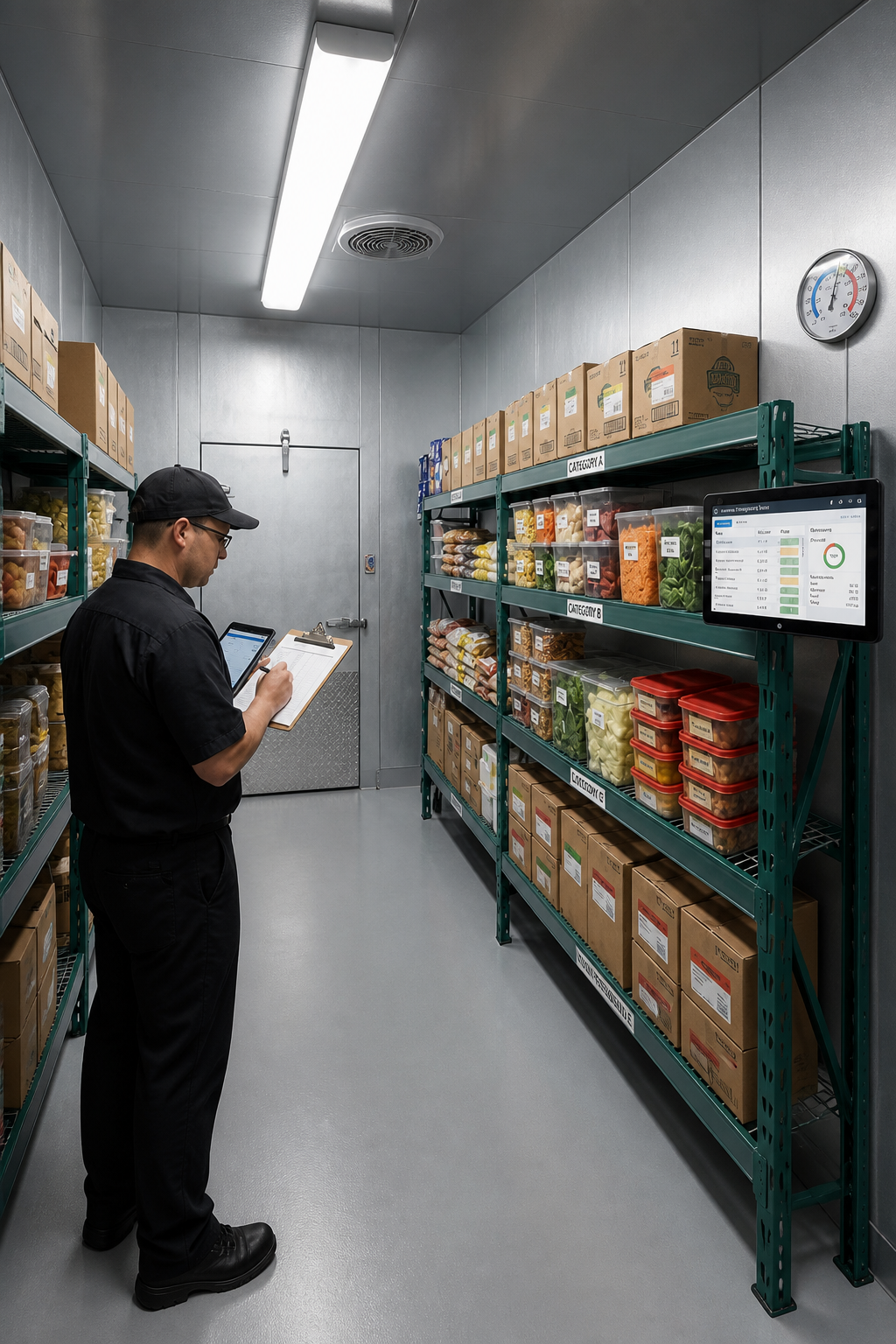
Physical inventory represents the dollar value of products actually on hand at a restaurant at the end of an accounting period. This generally includes food, liquor, beer, wine, and non-alcoholic beverages.
The General Ledger records the financial value of these inventory assets. Each inventory category typically has a corresponding balance sheet account.
At the end of each fiscal period, the balance in each inventory asset account, by location, should equal the extended dollar value of the corresponding approved physical inventory count.
For example, if a restaurant’s approved physical inventory shows $18,500 in food inventory, its Food Inventory GL account should also reflect $18,500.
This reconciliation must be performed by location and inventory category. Consolidated balances can hide errors when one restaurant’s overstatement offsets another restaurant’s understatement.

2. How Restaurant365 Posts Inventory to the General Ledger

Understanding how R365 handles inventory purchases and physical counts is the foundation of the reconciliation process.
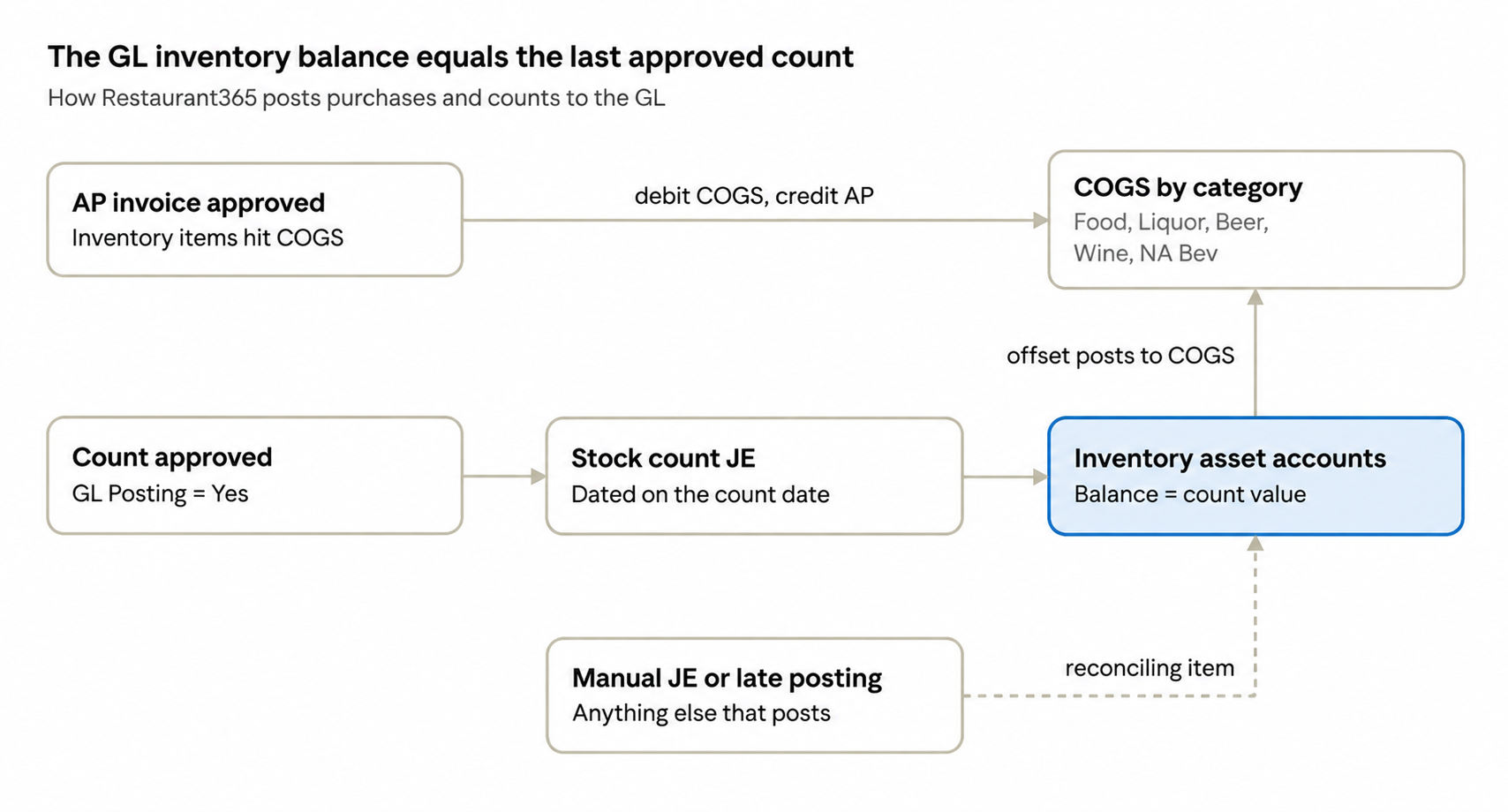
Unlike traditional inventory accounting systems, Restaurant365 generally expenses inventory purchases to COGS when vendor invoices are approved. Inventory asset accounts are then updated when an approved physical inventory count is posted to the GL.
The following diagram illustrates this process.
Step 1 – AP Invoice Approved
When a vendor invoice is approved in R365, inventory purchases are generally expensed directly to the appropriate COGS account. The accounting entry debits COGS and credits Accounts Payable. Purchases therefore affect the income statement rather than directly increasing the inventory asset balance.
Step 2 – COGS by Category
Purchases are recorded in their respective expense categories, such as Food, Liquor, Beer, Wine, and NA Beverage. Proper purchase item and GL account mapping is essential to ensure expenses are recorded in the correct categories.
Step 3 – Physical Inventory Count Approved
When a physical inventory count is completed and approved with GL Posting set to Yes, R365 generates a Stock Count Journal Entry.
Step 4 – Stock Count Journal Entry
The journal entry adjusts the inventory asset accounts to reflect the dollar value of the approved physical count. The corresponding change is offset to COGS. The entry is dated on the inventory count’s business date.
Step 5 – Inventory Asset Accounts Updated
The resulting inventory asset balances should equal the approved physical inventory valuation. This is the central principle of the reconciliation: the GL should reflect the value of the last approved inventory count posted to the GL.
Step 6 – Manual Journal Entries or Late Postings
Any subsequent transaction affecting an inventory asset account can create a discrepancy. Examples include manual journal entries, duplicate stock count entries, or invoices incorrectly coded to inventory accounts. These transactions must be identified and investigated.
3. Reports Required for the Reconciliation
R365 does not provide one report that completes the entire reconciliation. Several reports must be used together:
- Inventory Counts List: Identifies the last approved period-end count for each location and confirms GL Posting is enabled.
- Inventory Count Detail: Provides item quantities, units of measure, costs, extended values, and inventory GL account mappings.
- Stock Count Journal Entries: Confirms the physical count generated the appropriate accounting entry.
- GL Account Detail: Identifies every transaction affecting inventory asset accounts, including manual entries and late postings.
- Trial Balance: Provides the ending GL balance for each inventory account by location.

- Actual vs. Theoretical Analysis: Provides beginning inventory, purchases, transfers, ending inventory, and actual usage.
- AP Invoice/Purchase Detail: Identifies approved invoices, GL dates, amounts, and purchase item information.
Additional supporting reports include Inventory Transfers, Waste Logs, and the Profit and Loss by Location.
All reports should use the same fiscal period and location filters.
4. The Monthly Reconciliation Process

The following steps establish a consistent monthly procedure.
Step 1 – Validate Period Transactions
Confirm that all vendor invoices with GL dates in the period are approved. Verify that inventory transfers are approved and waste has been recorded. Identify duplicate invoices and ensure transactions are assigned to the correct accounting period.
Invoices remaining In Progress are not included in the GL or inventory roll-forward.
Step 2 – Identify the Period-End Inventory Count
For each location, identify the last inventory count dated on or before period end. Confirm its status is Approved and GL Posting is Yes. Record the count ID and total inventory value.
Step 3 – Refresh Inventory Costs
After all invoices are approved, open each period-end count and:
• Unapprove the count.
• Unlock the count.
• Select Refresh Cost.
• Approve the count again.
This ensures the inventory valuation incorporates the latest applicable invoice costs. Confirm that reapproval replaces the original stock count journal entry rather than creating a duplicate.
Step 4 – Calculate Physical Inventory by GL Account
Export the inventory count detail and subtotal the extended values by inventory GL account.
For Example:
| Inventory Category | Count Value |
|---|---|
| Food | $18,500 |
| Liquor | $4,200 |
| Beer | $2,100 |
| Wine | $1,700 |
| NA Beverage | $1,500 |
| Total | $28,000 |
Step 5 – Verify the Stock Count Journal Entry
Confirm that the journal entry is dated on the count’s business date, references the correct count, updates the appropriate inventory accounts, and includes the correct COGS offset.
Step 6 – Compare the GL Balance to Physical Inventory
Run the Trial Balance as of period end by location. Compare each inventory account’s GL balance to its corresponding physical inventory value.
Calculate:
Difference = GL Balance − Physical Inventory Value
For example:
- Food Inventory GL: $18,750
- Physical Food Inventory: $18,500
- Difference: $250
Ideally, every account should reconcile to $0.00.
Step 7 – Investigate Discrepancies
Use GL Account Detail to identify transactions affecting the inventory account after the stock count journal entry.
Common causes include:
- Manual journal entries posted directly to inventory accounts.
- Duplicate stock count journal entries.
- Incorrect purchase item GL account mappings.
- Invoice units of measure entered incorrectly (case versus bottle, pack versus pound).
- Items with missing or zero costs.
- Unapproved or incorrectly dated invoices.
- Inventory transfers approved at only one location or posted in different periods.
Correct the underlying issue, refresh the count if necessary, and repeat the reconciliation.
5. Validate the Inventory Roll-Forward and Actual vs. Theoretical
Once the GL reconciles to physical inventory, perform an additional validation using the Actual vs. Theoretical Analysis report.
The inventory roll-forward follows this formula:
Beginning Inventory + Purchases ± Transfers − Ending Inventory = Actual Usage
The following conditions should be met:
- Beginning inventory equals the prior period’s ending inventory.
- Ending inventory equals the current approved physical count.
- Purchases agree with approved AP invoice activity.
- Transfers are properly reflected between locations.
- Actual usage agrees with P&L COGS by category.
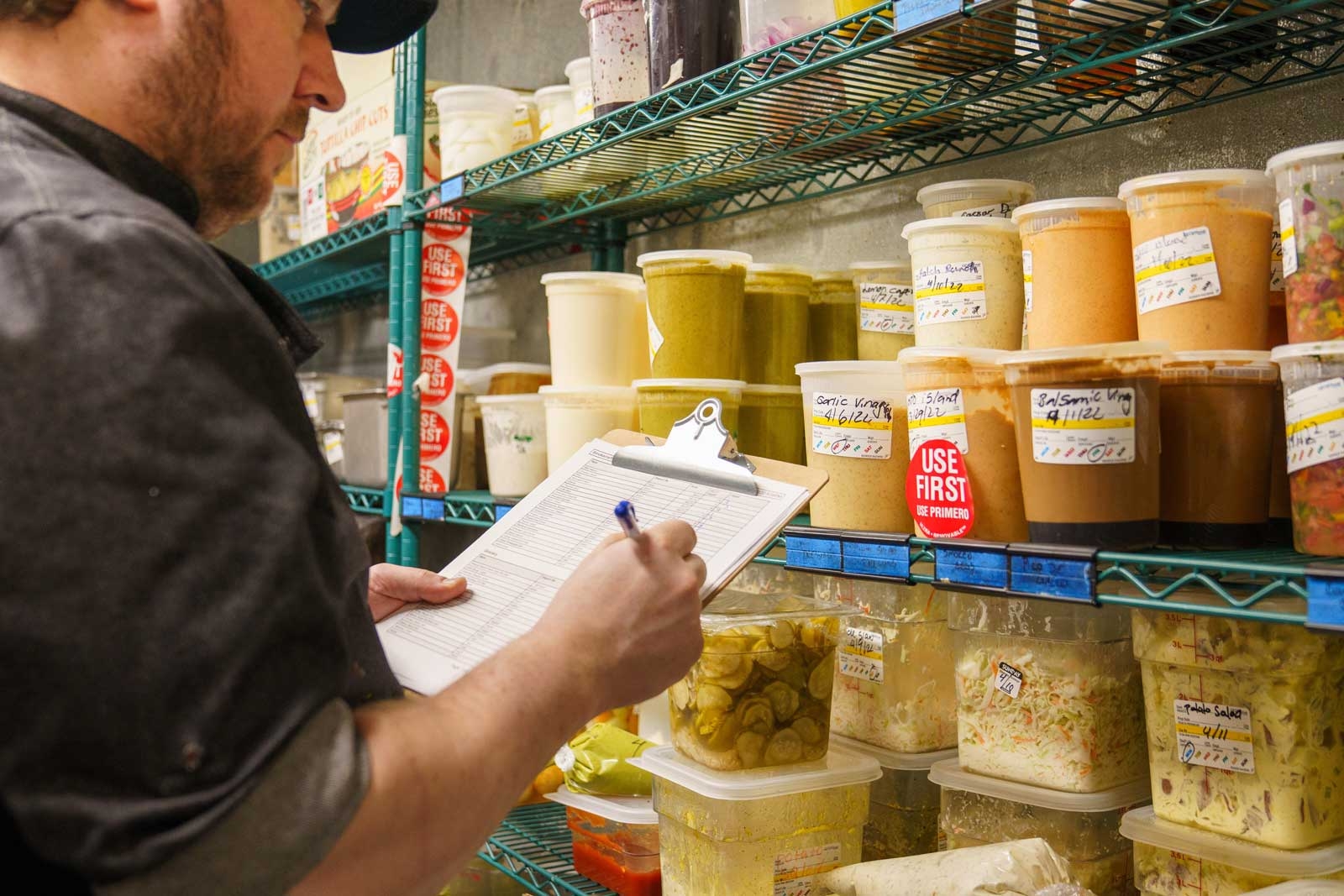
Review significant Actual vs. Theoretical variances for potential recipe, purchasing, unit-of-measure, costing, and waste-tracking errors.
These operational issues can affect food cost reporting even when the inventory asset accounts reconcile.
6. Monthly Sign-Off and Financial Close
Before closing the accounting period, confirm:
- All invoices, transfers, and waste transactions have been processed.
- Every period-end inventory count is approved with GL Posting enabled.
- Inventory costs have been refreshed.
- The appropriate stock count journal entries have posted.
- Every inventory account reconciles to $0.00 or has a documented explanation.
- Actual vs. Theoretical ending inventory agrees with the physical count.
- Supporting inventory detail, GL Account Detail, and Trial Balance reports are saved.
- Once the reconciliation is reviewed and approved, the accounting team can close the period in R365.
Conclusion: Getting the Full Value from Restaurant365
The inventory-to-GL reconciliation is more than an accounting requirement. It is a critical financial control that connects restaurant operations, purchasing, inventory management, and financial reporting.
Restaurant365 provides the tools necessary to perform this process, but obtaining accurate financial results requires understanding how the system posts transactions and following a consistent monthly procedure.
For multi-unit restaurant operators, performing this reconciliation by location and inventory category helps identify errors before they affect financial reporting, profitability analysis, and management decisions.
Successful Restaurant365 implementations do not end when the system goes live. They require ongoing education, process refinement, and continued attention to the accounting procedures that produce accurate financial results.
The objective is not simply to close the books each month. It is to close them accurately, consistently, and with confidence in the numbers.
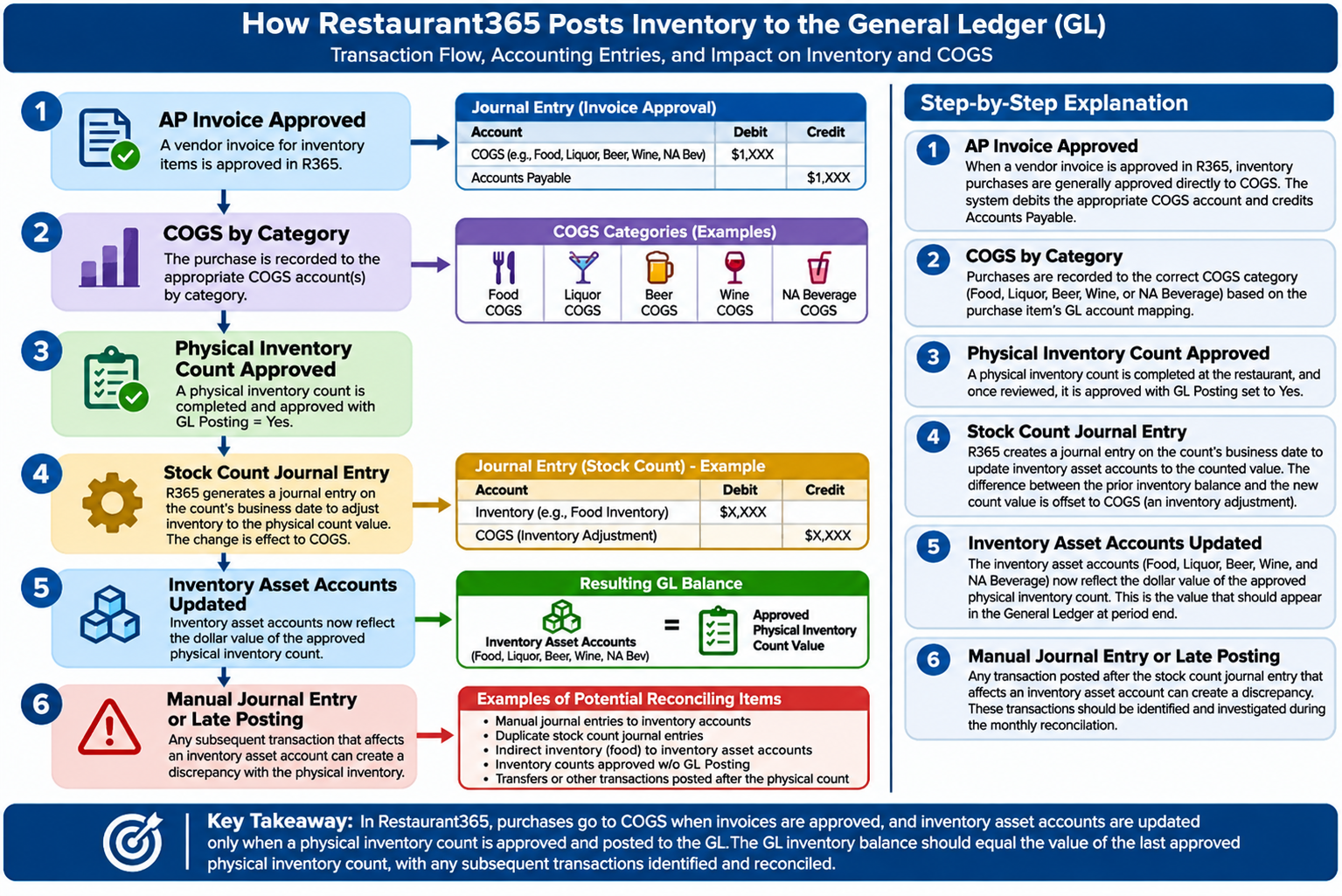
Below is a one-page guide to use as a reference each month.
For more information, please fill out the form below. We’ll circle back with you shortly to discuss your requirements in further detail.

We’d love to Meet You In Person Or Via The Web!
If you have any questions, or just want to learn more about how our services can contribute to your operation’s success, please fill out the form and we’ll respond as soon as we can. Alternatively, call us directly at (818) 888-9579.













Leave A Comment